

Service accounts require an Enterprise License Key.
Overview
Service accounts provide machine-to-machine authentication for automated access to the Lightdash API. Unlike personal access tokens which are tied to individual users, service accounts are organization-level entities designed for applications, CI/CD pipelines, and automated workflows. Service accounts allow you to:- Authenticate API requests without using personal user credentials
- Grant permissions through a system role or a custom role with granular scopes
- Attribute API actions directly to the service account in audit logs and
createdBy/updatedByfields - Set expiration dates for tokens
Enabling service accounts (self-hosted only)
If you’re self-hosting Lightdash, you will need to add the following environment variable to your configuration:Creating a Service Account
- Navigate to General Settings → Service Accounts
-
Click Add Service Account
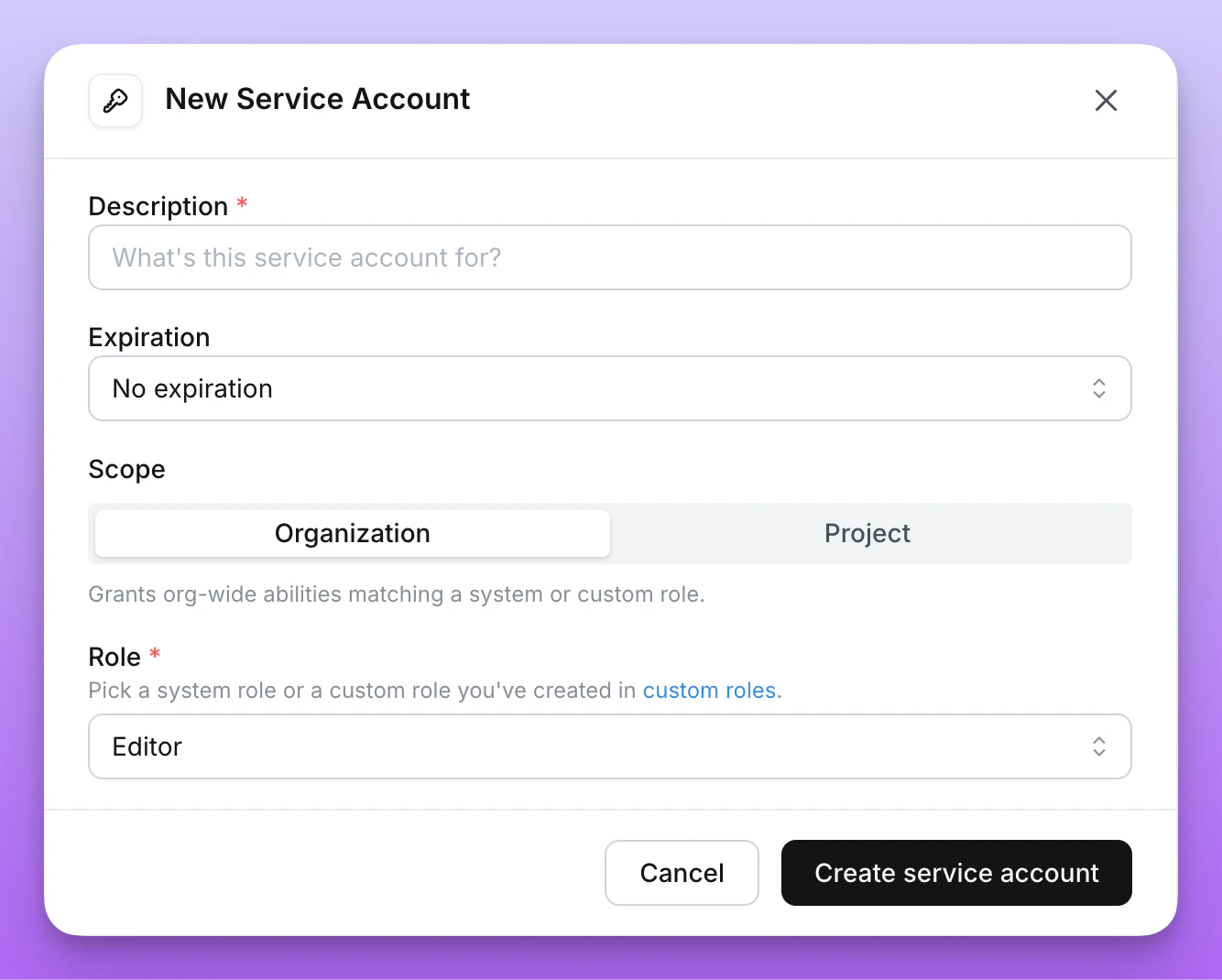
- Enter a Description and optional Expiry
-
Choose the Scope:
- Organization (default) — the service account can act across every project in the organization, with permissions set by a single role.
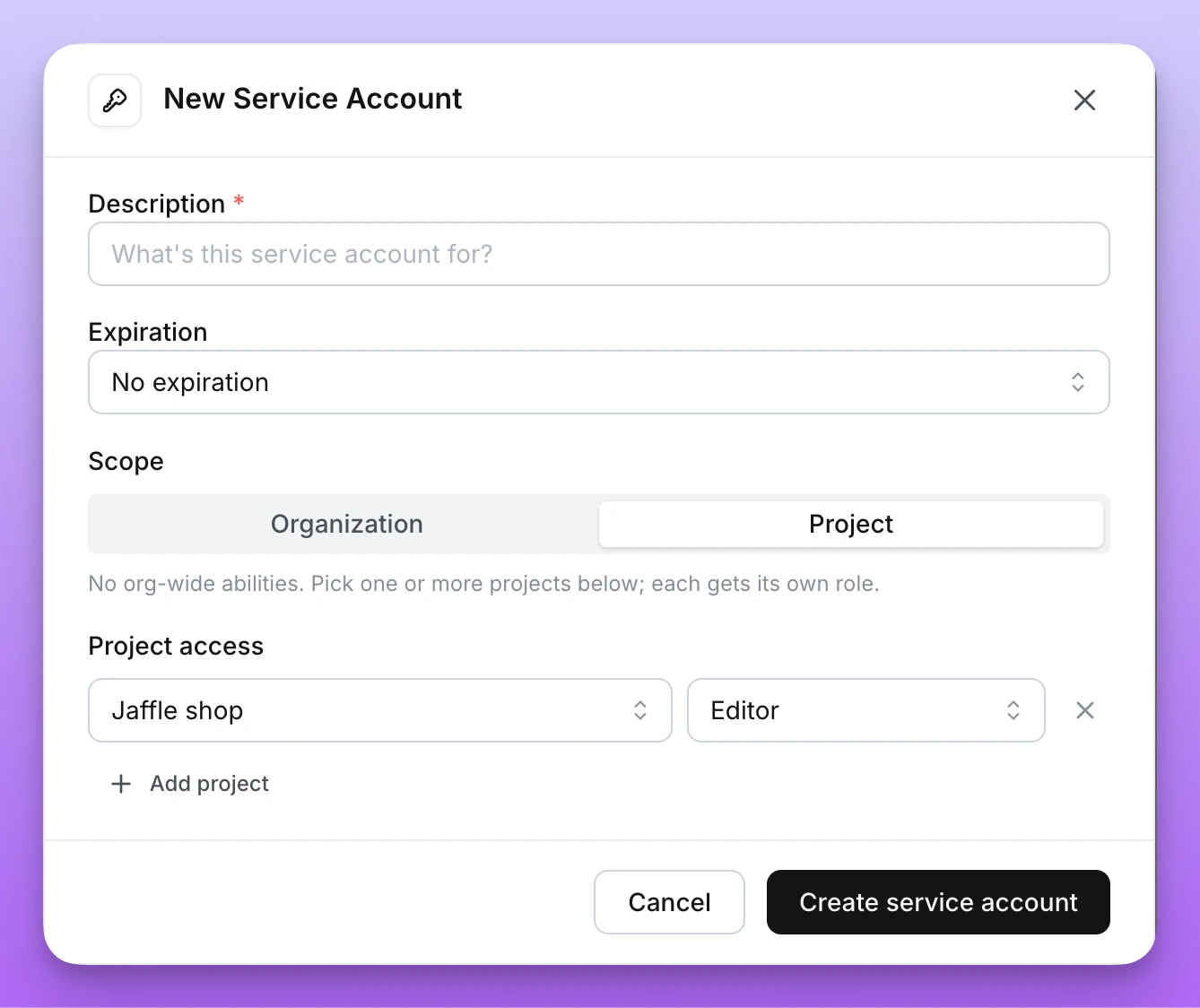
- Project — the service account is limited to specific projects, with a separate role per project. See Project-scoped service accounts.
-
Assign permissions:
- For Organization scope, choose a System role or assign a Custom role.
- For Project scope, add one row per project the service account should access (project + role).
- Click Create service account
-
Copy the generated token. This is the only time it will be shown. All service account tokens will be prefixed with
ldsvc_
Rotating tokens
If a service account token is leaked or you want to rotate credentials on a schedule, you can rotate it in place without recreating the service account.- Navigate to General Settings → Service Accounts
- Open the ⋯ menu next to the service account and select Rotate token
- Choose a new Expiry for the rotated token
- Click Rotate token
- Copy the new token. As with creation, this is the only time it will be shown.
Only service accounts created with an expiry can be rotated. Rotation is rate-limited to once per hour per service account.
Permissions
When creating a service account, assign either a system role or a custom role.System roles
Service accounts can be assigned the same organization-level system roles available to users.
For the full permission matrix, see organization roles.
Custom roles
For finer-grained permissions, assign a custom role when creating or editing a service account. Custom roles let you pick the exact scopes the service account should have. When a service account is bound to a custom role, the ⋯ menu next to it includes a View custom role link that opens the role definition.Custom roles are only available on Lightdash Enterprise plans.
Legacy scopes
Theorg:view, org:edit, and org:admin scopes are deprecated. Existing service accounts using these scopes continue to work, but new service accounts should be assigned a system or custom role instead.
Project-scoped service accounts
By default, service accounts are organization-scoped — they can act on every project in the organization through a single role. When a service account only needs to operate on specific projects, set its Scope to Project during creation. A project-scoped service account:- Has access only to the projects you grant at creation time
- Uses a separate role for each granted project
- Has no organization-wide content access outside of those projects
Selecting projects and roles
In the Add Service Account modal, with Scope set to Project, add one row per project the service account should access:- Pick a project
- Pick a role for that project — either one of the project roles (Viewer, Interactive Viewer, Editor, Developer, Admin) or a custom role defined in the organization
- Add additional rows for other projects
Viewing project access
In the service account list, project-scoped service accounts show an N projects badge in place of a role. Hover the badge to see each grant (project name — role).Updating project access
The projects and roles assigned to a service account cannot be edited after creation. To change project access, delete the service account and create a new one.Using service accounts
With Lightdash CLI
You can use service account tokens to authenticate with the Lightdash CLI:With the API
Service account tokens use theAuthorization header:
Example Use cases
CI/CD automation
Use service accounts to automatically deploy dbt changes to Lightdash in your CI/CD pipeline. See deploying with GitHub Actions for implementation details.Instance initialization
When setting up a new self-hosted instance, configureLD_SETUP_SERVICE_ACCOUNT_TOKEN to initialize with a service account. See the environment variables guide for details.